Collage Maker - Photo Editor
- 4.8
- Rating
- 10.00M
- Installs
- Free
- Price

 Analysis by App-foxy
I approached Collage Maker - Photo Editor as the sort of photography app I might keep on my phone for quick visual projects rather than serious image retouching. It is made by A Photo Studio, and its focus is straightforward: combine pictures, add visual touches, and turn a group of images into something ready to share. After spending time with that workflow, I found its biggest strength is how quickly it moves a person from a blank screen to a finished collage.
The app is free to use, carries an Everyone content rating, and runs on devices using Android 6.0 or later. Its current version is 1.6.8.1. The broad audience is easy to understand: family albums, birthday posts, travel recaps, small product presentations, phone wallpapers, and social media images can all be handled in one place. The more important question, though, is whether the interface remains comfortable for different abilities and situations. In my experience, it is friendly for casual editing, but it is not equally convenient for every user or every kind of project.
How the layout feels when readability and navigation matter
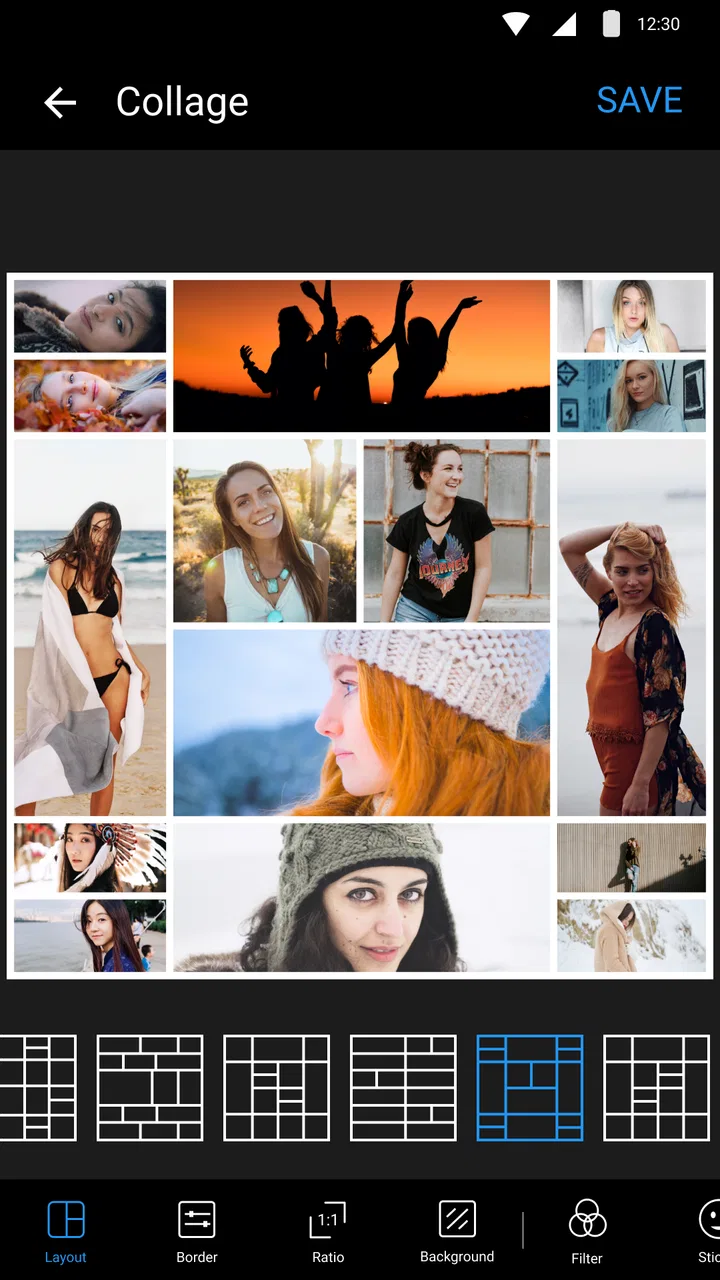
The app’s main appeal is that the editing path is visual. I do not need to learn a complicated desktop-style timeline or search through professional menus before seeing a result. Choosing images, selecting a layout, and adjusting the design feels closer to arranging printed photographs on a table than operating a full studio editor. That makes the first few minutes less intimidating for someone who rarely edits pictures.
You May Also Like

 Google Keep - Notes and lists
Google Keep’s Quiet Growth Shows the Appeal of Simpler Notes
As mobile work gets busier, Google Keep keeps winning a simple contest: capture a thought quickly, find it later, and get on with the day.

 Blood Strike: 2.5 Anniversary
Blood Strike’s Loadouts Turn Every Drop Into a Tactical Gamble
A close look at Blood Strike’s custom loadouts: how fast access to signature weapons reshapes its battle royale rhythm, rewards preparation, and narrows the gap between fights.

 Pandora - Music & Podcasts
Pandora’s Music Is Easy to Start, but Harder to Recover
Pandora’s strength is its low-effort path from a seed to a station. Its weak spot is how much confidence it asks you to place in connection, setup, and quiet recovery.

 8 Ball Pool
 Is Built on Rivalries, Rematches, and Routine
A close look at the rivalries, rematches, shared routines, and unanswered safety questions that turn a quick pool match into a persistent mobile community.

 Samsung Music
’s Quiet Strength Is Playing What You Already Own
Its reach comes less from spectacle than from dependable access to a personal library. That simplicity is both the app’s strongest retention engine and its ceiling.

 AccuWeather: Weather Radar
AccuWeather Review: A Quick, Clear Forecast for Everyday Decisions
For everyday plans, the best forecast is the one you can understand quickly. AccuWeather makes rain timing, radar, and local conditions easy to act on, with a few trade-offs.
More From Our News Desk



Its store summary points to more than 500 layouts, filters, stickers, and text tools, and that range is useful because different projects need different levels of decoration. A simple two-photo arrangement can stay clean, while a birthday or vacation collage can use more expressive elements. I recommend starting with the layout before touching filters or stickers. That small habit keeps the structure clear and prevents the common problem of decorating an image before deciding what the image is supposed to communicate.
Navigation is easiest when I have a specific result in mind. If I open the app just to browse, the number of creative choices can become distracting. A user who has difficulty processing crowded visual choices may benefit from deciding in advance whether the goal is a square social post, a memory page, or a quick comparison image. I also find it helpful to make one change at a time and pause to inspect the preview, rather than repeatedly switching between tools.
Text deserves particular care. Adding a caption can make a collage much more useful, especially for labeling people, places, or steps in a process. However, decorative lettering can compete with the photographs. For better readability, I would choose a short phrase, keep strong contrast between the words and the background, and avoid placing text over a busy face or detailed scene. The app gives creative freedom, but the user still has to make the final accessibility decision.
The most readable result usually comes from restraint: fewer photos, short captions, and enough empty space around important details. That is not a limitation of the tools alone; it is a practical way to make the finished image easier to understand on a small phone screen.
Useful workflows beyond a basic collage
One of my favorite practical uses is creating a visual checklist. For example, I can photograph several items needed for a trip, arrange them in a grid, and place a short label under each one. This is more useful than a decorative collage because the finished image becomes a compact reference. The same method works for documenting a room before rearranging furniture, comparing clothing options, or showing a seller the condition of several objects in one image.
Another good workflow is to separate selection from styling. I first choose only the photographs that tell the story, then test a few layouts, and only afterward consider a filter or sticker. This reduces visual overload and makes it easier to notice when one photograph is too dark, too small, or poorly cropped. The large layout collection is most valuable when treated as a set of structural options rather than a reason to keep changing designs endlessly.
For users with reading difficulties, a collage can also communicate more quickly than a paragraph. A sequence of images with very short labels may explain a process, a route, or a set of instructions at a glance. I would not rely on the app alone for formal communication, but it can produce a more approachable visual summary for family members, classmates, or customers.
Comfort, control, and sensory considerations
Photo editing is a visual activity, so the app naturally favors people who can comfortably inspect small images, icons, and previews. That does not make it unusable for people with low vision, but it does mean the phone’s own display settings become important. Increasing system text size, using display magnification, or enabling a high-contrast setting where available may help with surrounding interface elements. The edited image itself still needs to be checked at a larger scale before saving or sharing.
Touch control is generally approachable because the work is based on selecting, dragging, tapping, and adjusting objects. At the same time, these actions can be demanding for someone with tremors, limited reach, or reduced precision. A small tap on a control is different from a large physical button, and arranging several elements may require repeated corrections. I would recommend working on a stable surface, using the device with two hands when possible, and avoiding rushed edits. The app is best suited to short sessions when fine motor control becomes tiring.
There is also a hidden trade-off between creative density and physical effort. A simple layout may take only a few decisions, while a heavily decorated design requires repeated selections, repositioning, and visual checking. Stickers and text can make a project more expressive, but they also increase the number of small targets on the screen. If precision is difficult, I would keep the design spacious and use a small number of large elements rather than trying to fill every empty area.
For sensory-sensitive users, a quiet, uncluttered design is possible even though the app includes filters, stickers, and decorative tools. I found that the easiest way to avoid an overwhelming result is to choose a plain layout first and treat every added effect as optional. A collage does not need animation-like energy or strong decoration to be successful. A calm arrangement with consistent colors can be more comfortable to view and easier for another person to interpret.
Color choices matter as well. Filters can change the mood of a project, but they may reduce distinctions between objects or make text harder to read. If the collage is meant to identify products, steps, or people, I would prioritize natural-looking images over dramatic effects. This is especially important when the viewer has difficulty distinguishing similar tones. The app gives me the tools to alter appearance, but it does not replace careful visual judgment.
When the phone, the room, or the moment changes the experience
In a quiet room with time to review each image, the app feels relaxed and accessible to casual users. In a crowded place, the experience changes. A person may be working one-handed, dealing with glare, trying to finish before an appointment, or sharing the screen with someone else. In those situations, a small number of chosen photos and a simple layout are much more realistic than an elaborate design.
A useful everyday example is a parent preparing a quick school-event memory post while waiting for transportation. I would select a few clear pictures, choose a layout with obvious spacing, add one short caption, and stop there. The value is not in exploring every tool; it is in completing a readable image before attention is interrupted. This kind of short workflow is where the app feels strongest.
It can also help someone who communicates visually in a family or work setting. A collage showing several repair details, menu options, craft steps, or room changes may be easier to discuss than separate images sent one by one. The recipient can see the relationship between the pictures. I would still keep the order logical and avoid assuming that everyone will understand an image without labels.
For travel, the app is handy after the fact, when I want to combine photos from a day into one shareable memory. It is less suitable as a demanding on-the-go editor if the screen is hard to see outdoors or if I need highly accurate cropping. Bright sunlight, finger movement, and limited time all make fine adjustments less comfortable. A prepared template and a small selection of images solve much of that friction.
The app is also a reasonable choice for older relatives who want to make simple family collages, provided someone can help them establish a repeatable routine. I would show them how to select pictures, choose a basic layout, add one caption, and save the result. Teaching every feature at once would make the experience harder than necessary. Its accessible quality comes more from a focused workflow than from using the entire toolset.
Where the experience still creates barriers
The broad feature set can work against clarity. Having many layouts and decorative options is useful for experimentation, but it can make decision-making slower for people who prefer a small, predictable set of choices. The app does not magically know whether I want a formal announcement, a sentimental album page, or a playful social image. I have to impose that structure myself.
There is also a difference between making an attractive image and making an inclusive one. A busy sticker arrangement may look lively to me but become difficult to scan for another viewer. Small text may fit the design but fail when the image is viewed on a smaller display. Filters can create a consistent mood while reducing useful contrast. I consider these design risks more important than whether a project contains every available effect.
Users who need advanced photo correction may outgrow the editor. Someone working with precise color adjustments, layered compositions, detailed masking, or professional export routines would probably be better served by a dedicated image editor. This app’s advantage is speed and approachability, not deep control. I would choose it for composing several images, not for replacing a full professional workflow.
People who dislike in-app purchases should also pay attention to the editing experience before committing to a particular style. The app is free, while in-app purchases are listed at $2.99 per item. That does not prevent casual use, but it is worth deciding whether the free tools already meet the intended need. I would begin with a real project rather than browsing decorative options, because that makes it easier to judge the app without being pulled toward extras.
Device age can affect comfort too. Since the app requires Android 6.0 or later, it is available to many older phones, but a device that technically runs it may still have a small screen or limited responsiveness. Editing several images is more pleasant when previews respond quickly and the display offers enough room for controls. If the phone feels cramped, the user experience may be frustrating even though the operating system meets the requirement.
Sharing responsibility remains with the person creating the collage. Before sending an image, I would check whether faces, private documents, addresses, or other sensitive details appear in the frame. A collage combines multiple photographs into one convenient file, which is useful, but it can also make it easier to share more information than intended. A final inspection is a simple step that prevents avoidable mistakes.
Who should use it, and who should look elsewhere?
I would recommend it to someone who wants a quick collage maker with enough variety to support family memories, social posts, simple visual explanations, or small promotional images. It is particularly appealing if the user prefers direct touch controls and does not want to learn a complicated editor. The strong public response is consistent with that role: it has a 4.8 average from around 289 thousand ratings, with more than 10 million installs.
I would be more cautious about recommending it to a person who needs reliable precision, extensive accessibility customization, or a carefully controlled professional production pipeline. A dedicated editor may offer better control for complex retouching, while a presentation or design tool may be better for structured layouts with repeated text. Someone who only wants to place two pictures side by side may also find the range of choices more than they need.
Compared with a phone’s built-in gallery collage feature, this app is more attractive when variety matters. The larger collection of layouts and the combination of filters, stickers, and text make it easier to create a distinct visual style. Compared with a professional photo editor, it is faster to learn but less suited to detailed correction. Compared with a social media editor, it is more focused on assembling a complete image before sharing rather than adding a quick finishing effect inside a posting flow.
A practical and inclusive verdict
After using it as a casual photography tool, I see Collage Maker - Photo Editor as a capable choice for people who value quick results, visual experimentation, and a low learning curve. Its best work comes from simple decisions: select the clearest images, choose a layout that gives them room, keep text short, and treat decoration as optional. That approach also makes the app more comfortable for people dealing with limited vision, reduced motor precision, attention fatigue, or a busy environment.
The app supports different contexts reasonably well because the same basic workflow can serve a personal memory, a visual checklist, or a small information sheet. It does not remove every barrier. Small controls, crowded creative choices, demanding touch adjustments, and the limits of phone-based editing can still affect who enjoys it. I would not describe it as a replacement for specialized accessibility or professional design software.
Still, for a free photography app from A Photo Studio, it offers a useful balance between simplicity and creative range. The Everyone rating makes it approachable for a broad audience, and the long-running release history gives it a familiar place among mobile collage tools. If I needed to make a readable, shareable image in a few minutes, I would use it. If the project required exact image correction, complex layering, or highly controlled typography, I would move to a more specialized alternative.
My final advice is to judge it by one real task rather than by the number of available tools. Try making a small collage with a clear purpose, inspect the text at the size where others will view it, and see whether the touch controls feel comfortable. If that focused test works, the app is likely to become a useful everyday companion. If the interface already feels crowded or physically tiring, more layouts will not solve the underlying problem.
FAQs for Collage Maker - Photo Editor
01What features does Collage Maker - Photo Editor offer?
Collage Maker - Photo Editor provides a wide range of features including multiple photo grid layouts, various backgrounds, filters, stickers, and text options. Users can customize their collages extensively, allowing for unique and creative designs. The app also supports high-resolution exports, making it perfect for sharing on social media platforms.
02Is Collage Maker - Photo Editor user-friendly for beginners?
Yes, Collage Maker - Photo Editor is designed with an intuitive interface that caters to both beginners and experienced users. It provides simple drag-and-drop functionality, along with clear instructions and tooltips, ensuring that users can easily navigate the app and create stunning collages without prior experience.
03Does Collage Maker - Photo Editor require an internet connection?
Collage Maker - Photo Editor can be used offline for most of its features. However, an internet connection is necessary for downloading additional templates, stickers, or updates. Offline functionality ensures users can create and edit their collages anytime, anywhere, without relying on a constant internet connection.
04Are there any in-app purchases or ads in Collage Maker - Photo Editor?
While Collage Maker - Photo Editor is free to download and offers many features at no cost, it does include in-app purchases for premium content such as exclusive templates and tools. Additionally, users may encounter ads, but these can be removed by purchasing the ad-free version of the app.
05What platforms is Collage Maker - Photo Editor available on?
Collage Maker - Photo Editor is available on both Android and iOS platforms. Users can download it from the Google Play Store for Android devices or the Apple App Store for iOS devices. This ensures that a wide range of users can access and enjoy the app’s creative features.
Pros
- User-friendly interface for easy navigation.
- Wide range of templates and layouts.
- High-quality output for sharing on social media.
- Customizable text fonts and colors.
- Frequent updates with new features.
Cons
- Contains in-app purchases for premium features.
- Ad-supported
- which can be distracting.
- Requires internet for some functionalities.
- Limited free design elements available.
- Occasional crashes on older devices.

Collage Maker - Photo Editor
Gallery